Guide · 01 Using Notes as your household mini bank
Think of Notes as little accounts in a shared household bank — one note for each part of life you keep coming back to. A few that work well:
- Recipes The meals your household actually cooks, with links — ready on the next grocery run.
- Kids’ activities Rainy-day and weekend ideas, with links to bookings or how-tos.
- Wish lists Birthday and holiday ideas everyone adds to through the year.
- Travel checklist A packing list you reuse every trip. A to-do gets checked off and lost; a note stays whole — link it to the trip’s calendar event and it’s right there when you pack.
- Christmas cards Who to send to, ticked off as you go.
Note Notes link to calendar events, lists, and people — so the right note surfaces exactly when you need it.
Guide · 02 Importing from Apple Calendar
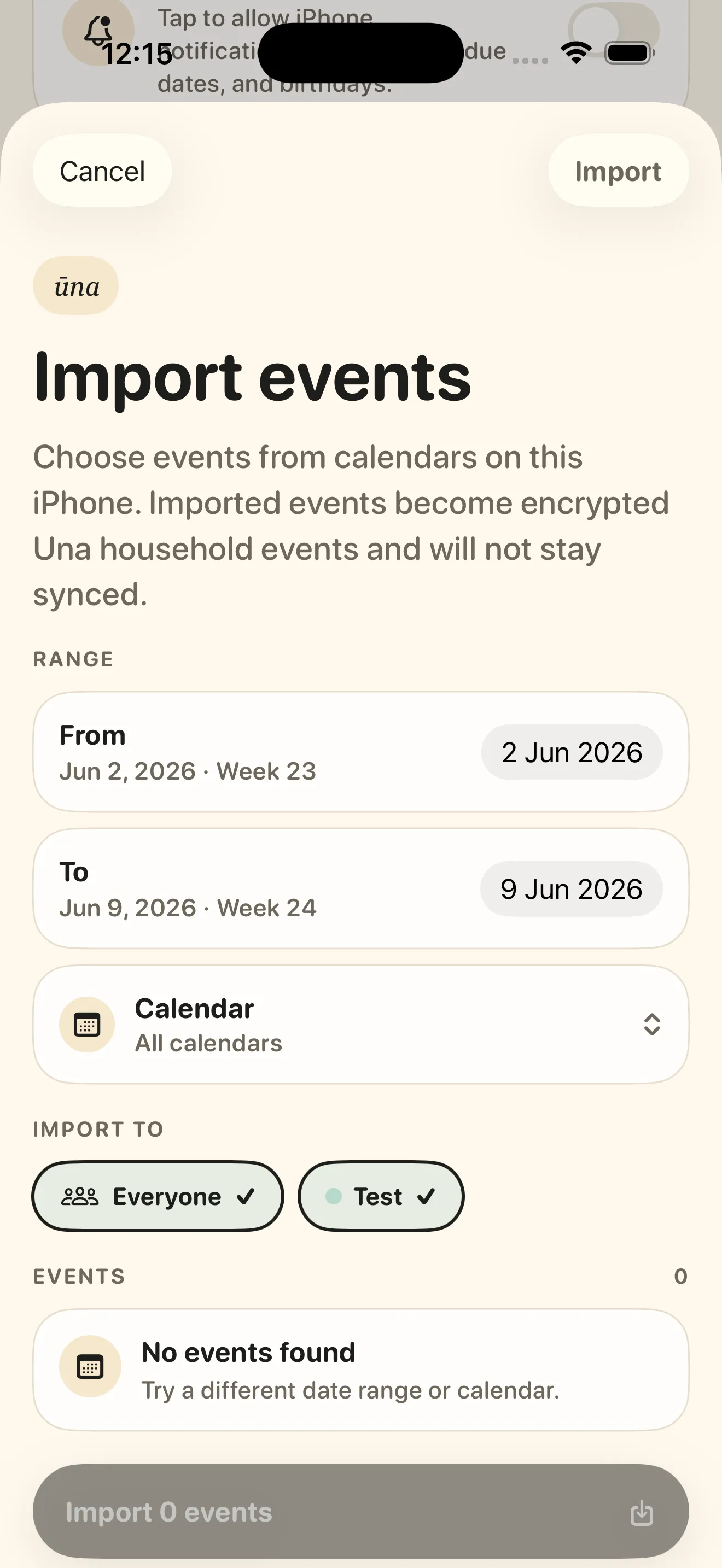
Bring events from your iPhone’s calendar into Ūna. Imported events become encrypted household events — it’s a one-time import, not a live sync, so changes you make later in Apple Calendar won’t flow through.
- 01 Open Settings → Import events.
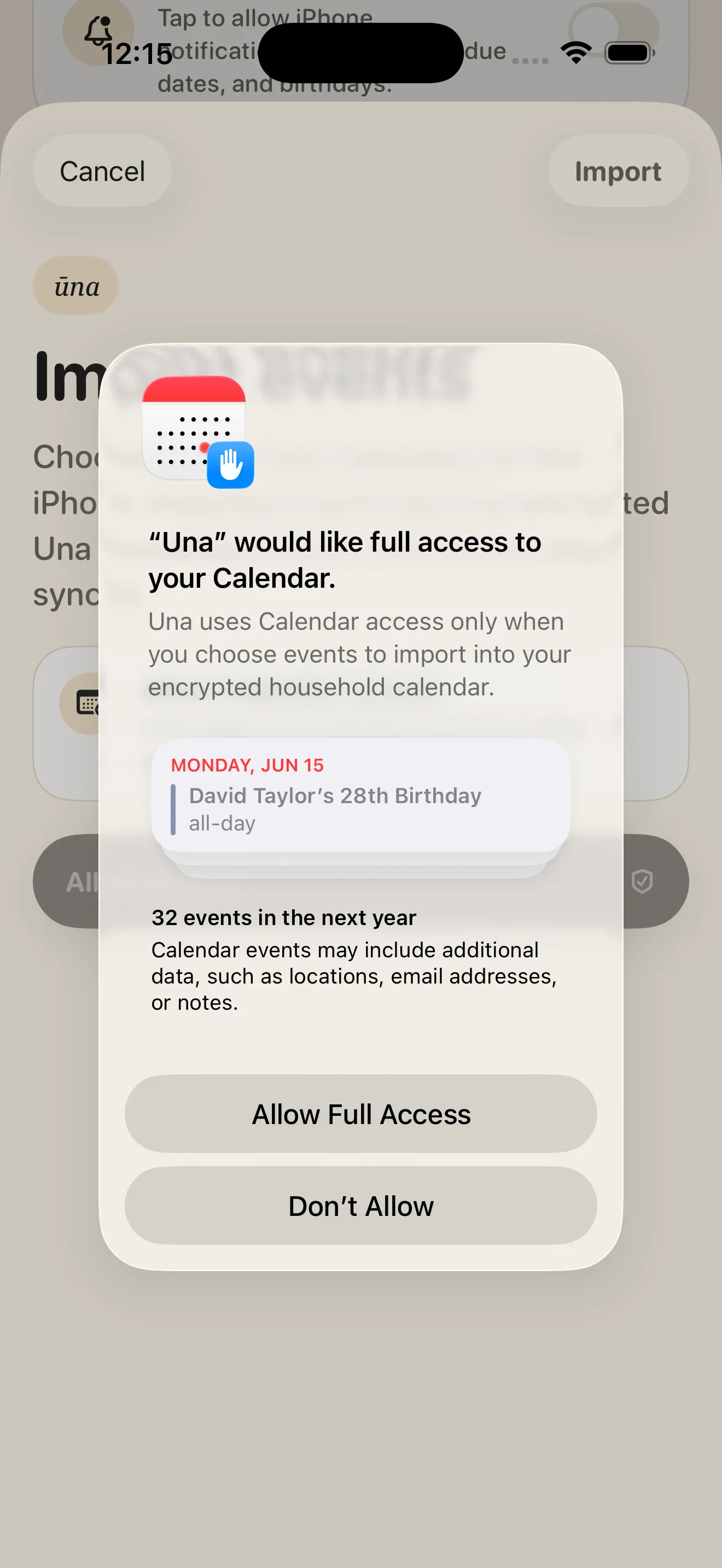
- 02 Allow calendar access — Ūna reads it only while you choose what to import.
- 03 Pick a date range and calendar, choose who the events are for, then tap Import.
Note Imported events are copied in and encrypted as Ūna household events; afterwards they stand on their own and won’t stay in sync with Apple Calendar.
Guide · 03 Tracking birthdays
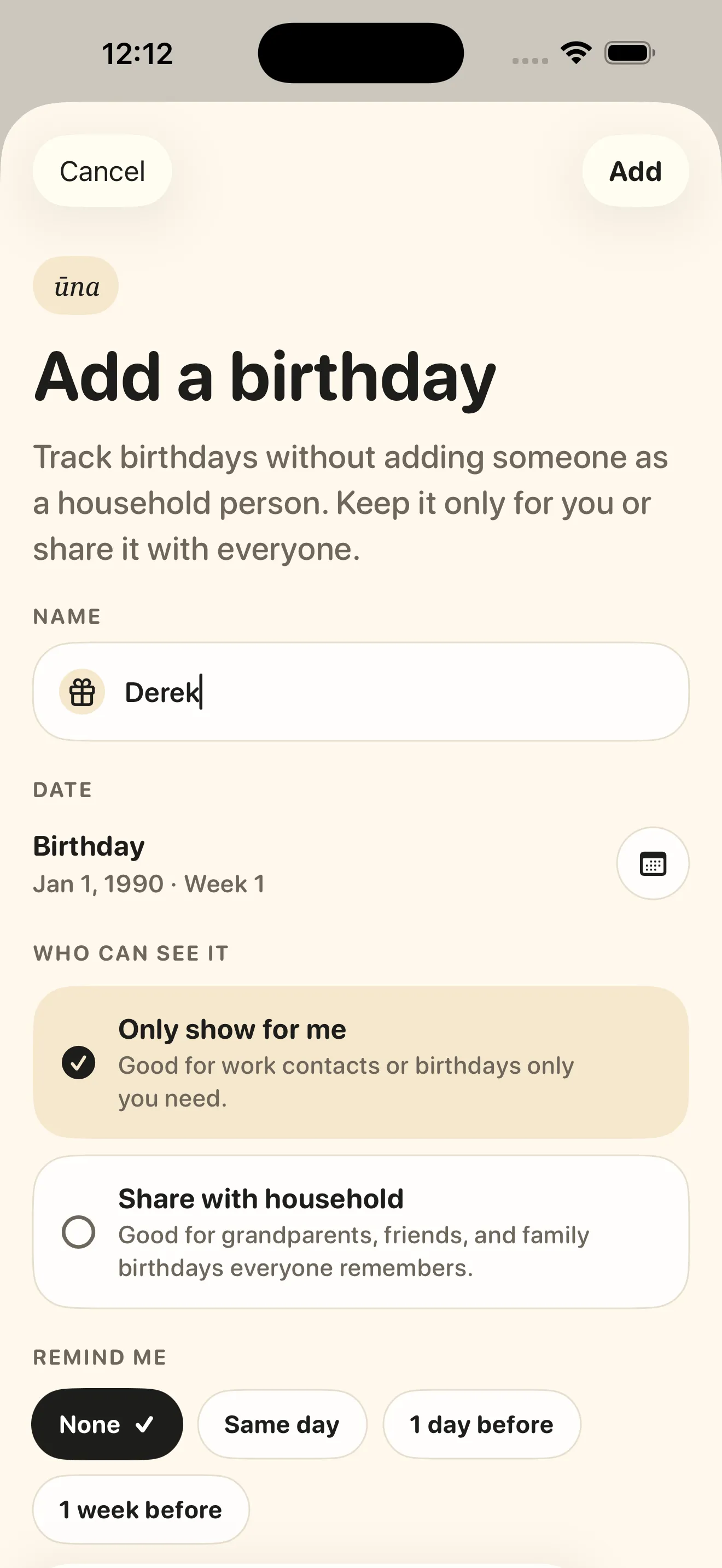
Add a birthday once and Ūna remembers it every year — no shared spreadsheet, no one quietly forgetting. As you add it, you choose who sees it.
Note “Only show for me” keeps a birthday private (handy for work contacts); “Share with household” reaches everyone for family and friends. Set a reminder — same day, a day before, or a week before.
Guide · 04 Using attachments
Attach the document a plan depends on right to its calendar event, so nobody’s digging through email at the gate.
- 01 Create the calendar event — a flight, a match, a reservation.
- 02 Add the PDF or image as an attachment.
- 03 Anyone in the household opens it straight from the event.
Note Great for flight itineraries, ticket PDFs, booking confirmations, and parking passes.
Guide · 05 Using location in calendar events
Add a place to an event and Ūna shows it on the event. Tap it to open straight in Apple Maps or Google Maps for directions — handy when you’re heading somewhere new.
Guide · 06 Setting up widgets
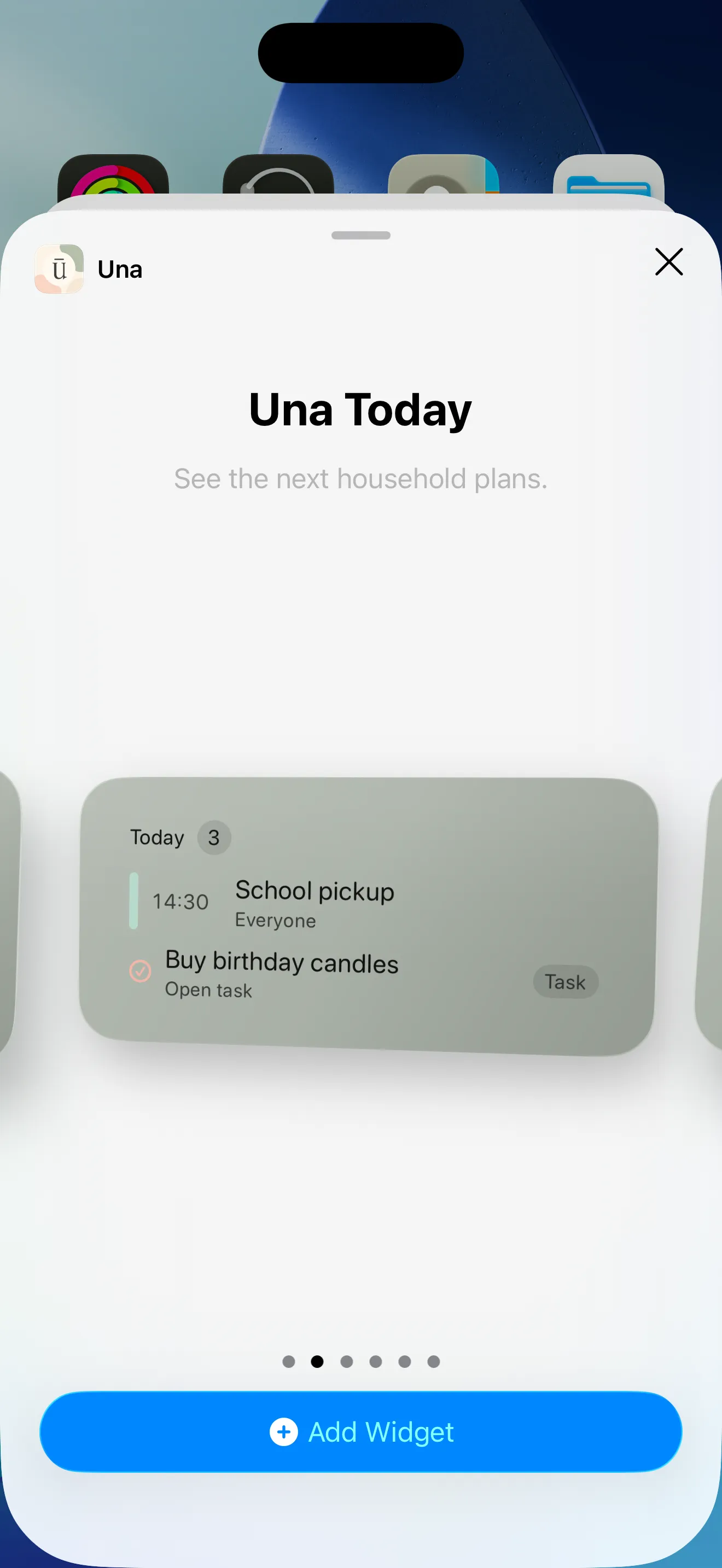
Put the day’s plan on your home screen so you see what’s next without opening the app.
- 01 On your home screen, tap Edit in the top left.
- 02 Tap Add Widget, then search for Ūna.
- 03 Add the widget you want and place it.
Note Widgets are part of Ūna Plus. They read a small local snapshot on your device — they don’t need the app open and don’t start household sync on their own.
Guide · 07 Inviting another adult to the household
Ūna is at its best when the adults run the household together — both adding errands, plans, and birthdays. That shared effort is what gives a household its soul.
- 01 Open the Family tab.
- 02 Tap “Invite another adult.”
- 03 Create a fresh invite link.
- 04 Send it only to the person you want to join.
Note Re-inviting someone who left? Always create a fresh link — see Runbook 05 above.
Guide · 08 Plans, billing & restoring purchases
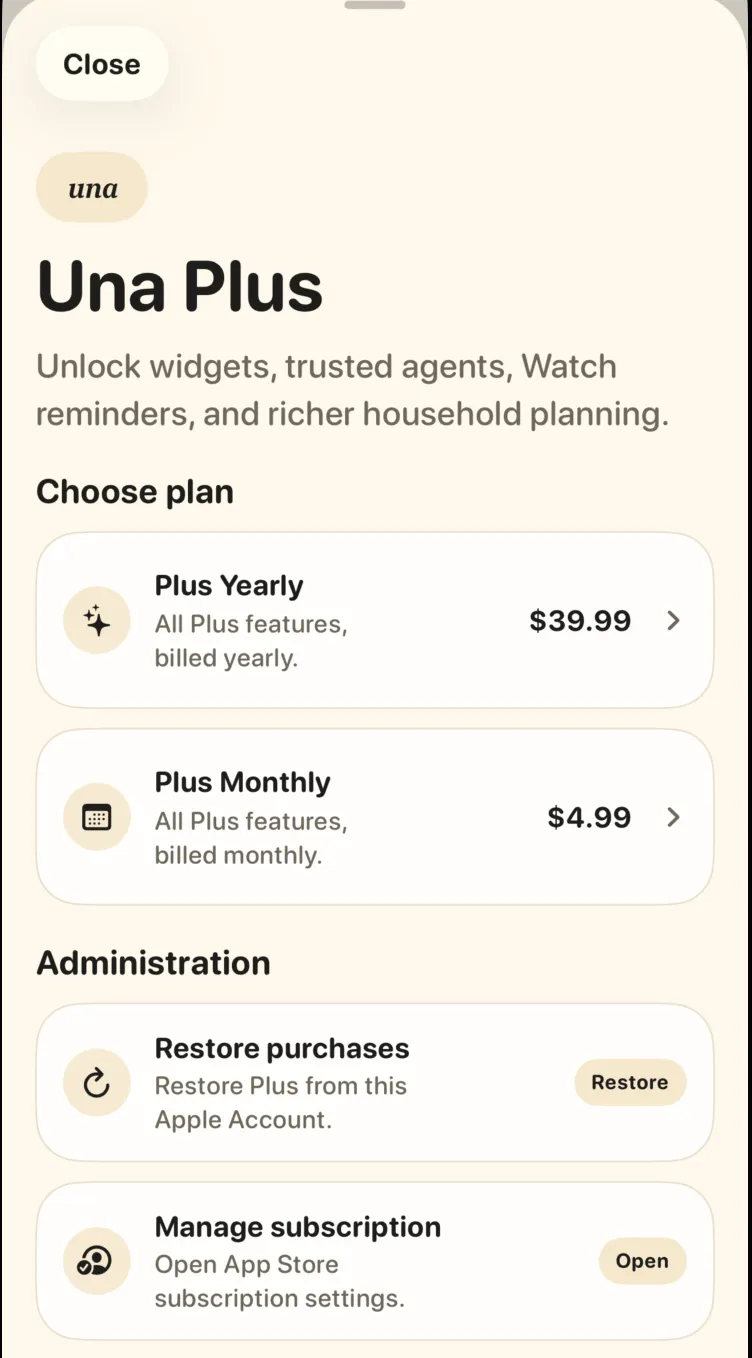
Ūna Plus unlocks widgets, trusted agents, Watch reminders, and richer household planning. Plans and billing live under Settings → Ūna Plus.
- 01 Upgrade: open Settings → Ūna Plus and choose a monthly or yearly plan.
- 02 Paid but don’t see Plus? Tap Restore purchases to restore it from your Apple Account.
- 03 Change or cancel: tap Manage subscription to open your App Store settings.
Note Billing is handled by Apple. Ūna can’t charge, refund, or cancel a subscription for you — manage it in your Apple Account settings.